Want to install NetMirror APK on Your Android Phone? If the app is not available through Google Play in your region you may find an APK version online. Installing an APK is straightforward. You should check the download source before allowing it onto your device.

Follow this guide to learn how to download, install and open NetMirror on Android.
Table of Contents
What Is NetMirror APK?
NetMirror is an app that is connected to movie and TV show discovery or streaming depending on the version and service offered. An APK is the installation file format used by Android applications.
Before downloading check the apps information supported Android version, privacy policy and whether its content is legally available in your country.
Requirements Before Installing NetMirror
Make sure you have the following
- An Android phone with a compatible operating system.
- A stable Wi Fi or mobile internet connection.
- Enough free storage space.
- A download source you can independently check.
- Access to your phones Settings and Downloads folder.
How to Install NetMirror APK on Android
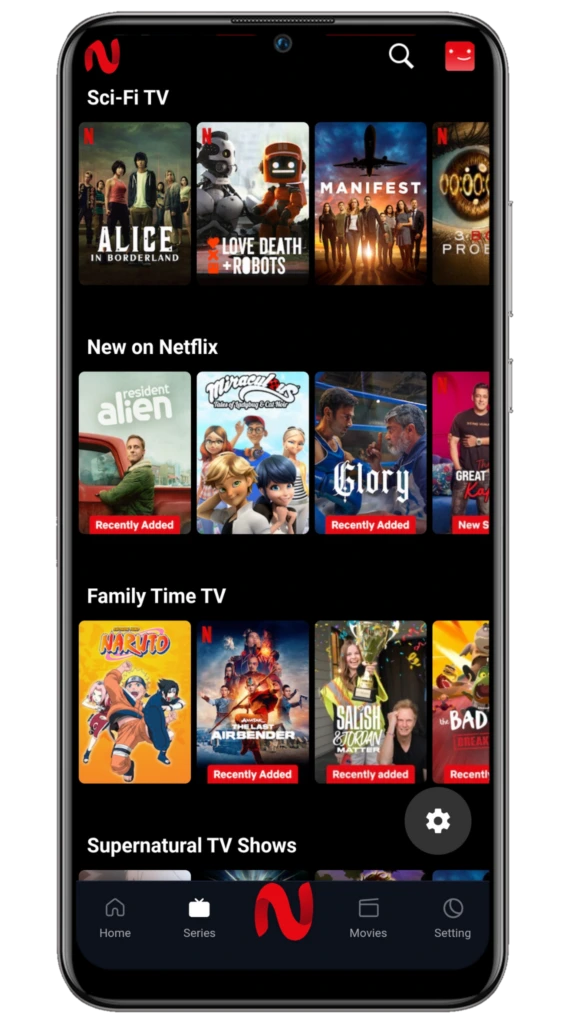
Step 1: Find a Trusted Download Source
Open your browser, such as Google Chrome and locate the developers verified download page if available. Make sure that the website belongs to the developer rather than a copycat website.
Avoid pop ups shortened links, modified APK files and pages asking you to install additional apps.
Step 2: Download the APK File
Open the verified download page and choose the Android APK download option. Wait until the file finishes downloading.
You can usually find it by opening Chromes Downloads section or navigating to Files → Downloads on your phone.
Step 3: Allow Installation From Your Browser
Android may stop an APK downloaded outside Google Play until you give permission to the app opening the installation file.
If prompted:
- Tap Settings in the installation warning.
- Open the Install apps option.
- Select the browser or file manager you are using.
- Enable Allow from this source if you trust the file and understand the risks.
- Return to the downloaded APK.
Menu names can differ between Samsung, Xiaomi, Redmi, Oppo and other Android devices. Only enable this permission when necessary.
Step 4: Start the Installation
Open the downloaded APK file. Look at the installation screen. Check the app name and any permissions requested.
Tap Install if the file and its source’re trustworthy. Wait for Android to finish installing the application.
If your phone shows a security warning or identifies the file as harmful do not automatically ignore the warning. Check the file first.
Step 5: Open NetMirror
Once installation is complete tap Open. Alternatively go back to your home screen or app drawer. Look for the installed application.
Follow any setup instructions shown on the screen. Do not share personal information or payment details with an unverified service.
Step 6: Review Security Settings
After installation go back to your browsers Install unknown apps settings. Turn off permission if you no longer need it. Keep Google Play Protect on and install updates from a source you can check.
Common NetMirror APK Installation Problems
App not installed: Check storage, Android compatibility and whether an existing version conflicts with the downloaded file.
Download failed: Check your internet connection, available storage and browser download history. Try again from a verified source.
Parsing error: The APK may be incomplete not compatible or meant for an Android version. Do not download replacement files.
Security warning:. Check the developer, file integrity and requested permissions before going ahead.
Is NetMirror APK Safe to Install?
No APK can be considered safe just because a website says it is verified. Apps downloaded outside Google Play may have malware ask for many permissions or share personal information.
Use a verified distribution source check the file with security tools look at the permissions asked for and stay away, from unofficial modified versions. Also make sure any movies or TV shows you watch are offered with authorization.
Final Words
Installing an Android APK involves getting the file checking its source giving permission when needed and finishing the installation. By following these steps you can reduce common installation problems and keep your device safe.
Always think about your phones security and use authorized streaming services whenever you can.