

Short videos dominate social media, and creating them no longer requires expensive software or a powerful computer. The CapCut video editor has become one of the most widely used editing apps in the world, helping students, creators, small businesses, and freelancers make polished videos straight from their phones. This guide covers what CapCut is, what it can do, how to get started, and whether it’s the right tool for you.
Table of Contents
What Is the CapCut Video Editor?
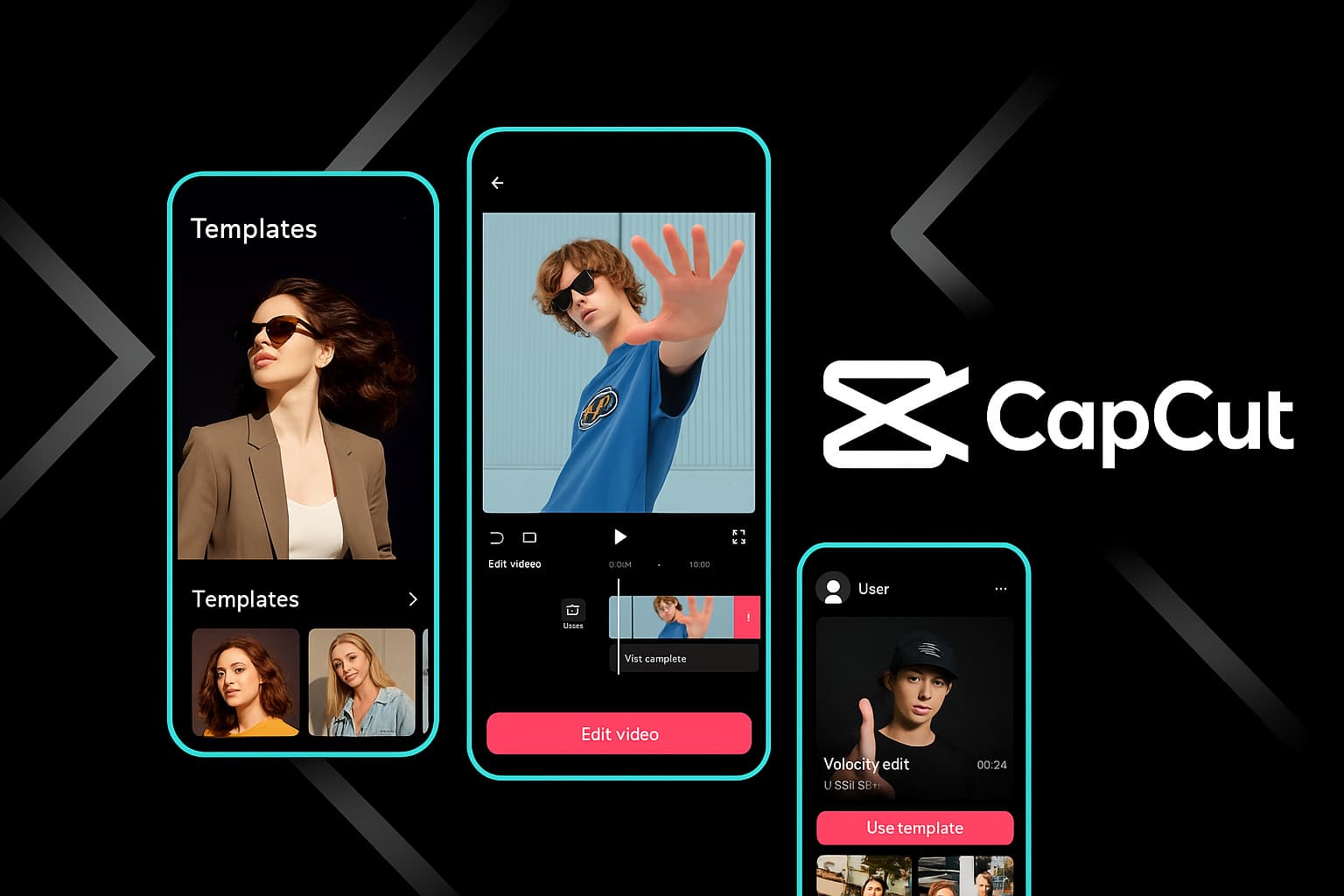
CapCut is an all-in-one video editing app developed by ByteDance, the company behind TikTok. It’s available on Android, iOS, and as a desktop and web version. It’s known for combining a simple interface with features that were once found only in professional software.
Because it integrates well with short-form platforms like TikTok, Instagram Reels, and YouTube Shorts, it has become a favorite for people who post content regularly.
Key Features of the CapCut Video Editor
1. Easy timeline editing. You can trim, split, merge, speed up, slow down, and reverse clips with simple taps and drags.
2. Templates. Ready-made templates let you drop in your own photos and clips and get a trendy, synced video within minutes.
3. Auto captions. The app can generate subtitles from speech automatically, which saves a lot of time and improves accessibility and viewer retention.
4. Effects, filters, and transitions. A large library of visual effects, color filters, and transitions helps give your videos a distinct style.
5. Background removal and AI tools. CapCut offers tools such as background removal and various AI-powered features, some of which may require a Pro subscription.
6. Music and sound. You can add music, sound effects, and voiceovers, and adjust audio levels per clip.
7. High-quality export. You can export in different resolutions and frame rates, depending on your device and plan.
How to Get Started With the CapCut Video Editor
- Download the app from the official Google Play Store or Apple App Store (or use the desktop or web version from the official website).
- Create a new project and select the photos or videos you want to edit.
- Arrange and trim your clips on the timeline.
- Add text, music, and effects to match the mood of your video.
- Generate captions if your video includes speech.
- Preview, then export in the resolution that suits your platform.
Tips for Better Videos
- Keep short-form videos tight, and cut anything that doesn’t add value.
- Use consistent fonts and colors so your content looks branded.
- Add captions, since many people watch without sound.
- Start with a strong hook in the first two seconds.
- Test templates, but customize them so your video doesn’t look like everyone else’s.
Pros and Cons
Pros
- Beginner-friendly interface
- Generous free features
- Great for social media formats
- Available on mobile, desktop, and web
Cons
- Some advanced and AI features require a paid plan
- Less control than professional desktop editors for long or complex projects
- Features and policies can change over time
Can You Earn With the CapCut Video Editor?
Yes. Many freelancers use CapCut to offer short-video editing, social media content, and reel creation services on platforms such as Upwork and Fiverr. If you want to earn from your skills, build a small portfolio of sample videos, learn basic storytelling and pacing, and always use the official app and licensed assets so your work is safe to deliver to clients.
A Word of Caution on Modded Versions
Searching for “mod APK” or “premium unlocked” versions of any app is risky. These files from unofficial websites can contain malware, steal personal data, or get your accounts banned. Download only from official stores and websites, and use the free features or an official trial before paying.
Free Alternatives
If CapCut doesn’t suit your workflow, consider alternatives such as InShot, Canva’s video editor, or DaVinci Resolve for more advanced desktop editing.
Hypic – Photo Editor & AI Art: The Ultimate Mobile Creativity App

Final Thoughts
The CapCut video editor is a strong choice for anyone who wants fast, good-looking videos without a steep learning curve. Start with the free features, practice with small projects, and upgrade only if you truly need the premium tools.
- CapCut official website: https://www.capcut.com
- ByteDance (parent company): https://www.bytedance.com
- TikTok (closely related platform): https://www.tiktok.com
- Canva (alternative editor): https://www.canva.com
- DaVinci Resolve (advanced alternative): https://www.blackmagicdesign.com/products/davinciresolve
- Upwork (for freelancing with editing skills): https://www.upwork.com